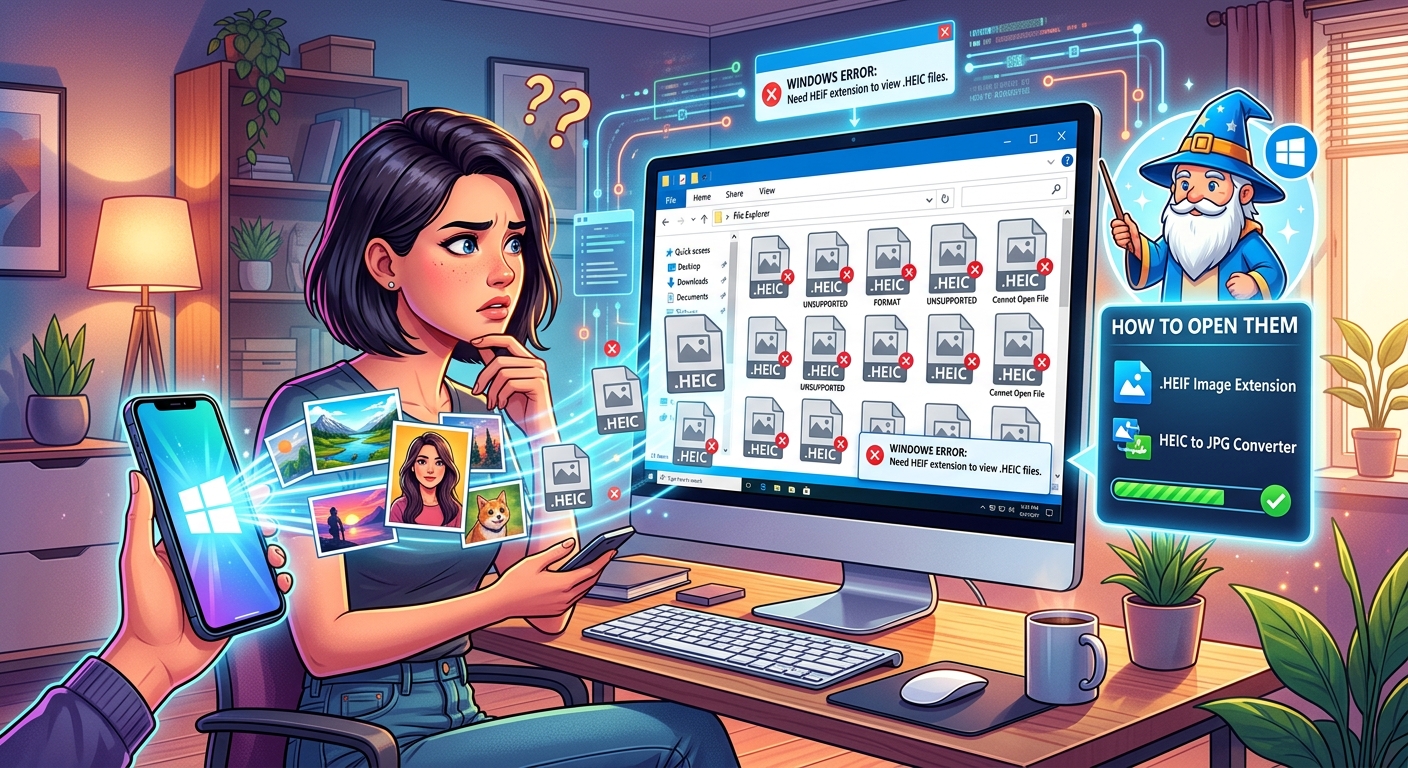
You transfer a batch of photos from your iPhone to a Windows PC, double-click one, and nothing happens. Windows looks at the file like it has never seen anything like it. The extension reads .heic and the operating system has no built-in way to open it. This is not a sign that something went wrong with your phone or your computer. It is a predictable clash between two ecosystems that made different technical choices, and the fix is far simpler than the confusion suggests.
What's Actually Happening Here
- HEIC is Apple's default photo format since iOS 11, built on an international standard called HEIF.
- Windows does not include a HEIC decoder by default because the underlying codec requires patent licensing.
- You can fix existing files by installing a Microsoft codec, using a browser-based converter, or going through a cloud service.
- Converting to JPG is the most portable solution and the quality difference is minimal for everyday photos.
- One setting change on your iPhone makes every future photo shoot in JPG, stopping the problem before it starts.
What HEIC Actually Is and Why Apple Uses It
HEIC stands for High Efficiency Image Container. It stores photos using the HEIF standard, which stands for High Efficiency Image File Format. Apple made it the default camera format starting with iOS 11 in 2017.
The motivation was storage. HEIC files are roughly half the size of an equivalent JPG at the same perceived visual quality. For a phone that might hold tens of thousands of photos, that difference adds up to gigabytes of saved space. Apple wanted to stretch storage further without forcing users to choose between photo quality and capacity.
HEIC is also technically richer than JPG in several ways. It supports 16-bit color depth compared to JPG's 8-bit limit. That means smoother gradients, better handling of shadows and highlights, and more data preserved from the sensor. It can even store transparency and short animated sequences, though for standard photos those features stay unused.
The format is not a proprietary Apple invention in the way some assume. HEIF is an international standard developed by the Moving Picture Experts Group, the same body behind widely used video compression standards. Apple chose the .heic extension for images stored in this container. The standard itself is broadly supported across modern hardware and operating systems, just not by Windows out of the box.
Why Windows Treats These Files Like Strangers
JPG has been the default photo format since the 1990s. Windows was built around it and ships with full native support. HEIC is newer, emerged from Apple's hardware ecosystem, and arrived at a time when Microsoft had no particular reason to bundle support for it preemptively.
There is also a licensing cost involved. HEIC relies on the HEVC video codec for its compression. HEVC is covered by patents, and Microsoft chose not to include the codec in Windows by default. Bundling it would add per-device licensing fees. Instead, Microsoft makes it available through the Windows Store, leaving the install decision to users who actually need it.
These are the specific reasons the problem keeps coming up:
- Apple enables HEIC by default on every iPhone running iOS 11 or later, affecting hundreds of millions of devices.
- Most iPhone users never adjust camera format settings and have no reason to think about it.
- Windows 10 and Windows 11 both ship without a built-in HEIC decoder.
- Standard Windows photo apps fail silently or show a generic error on HEIC files rather than offering a helpful explanation.
- USB cable transfers and direct file copies deliver raw HEIC originals, bypassing any automatic conversion that might apply in other contexts.
None of this is malicious or careless on either side. Apple optimized for iPhone storage and image quality. Microsoft kept Windows lean on codec licensing. The user ends up in the gap between two rational decisions.
Your Practical Options for Opening HEIC Files on Windows
There are five real paths forward, depending on how often you deal with HEIC files and how much you want to change your workflow.
- Install the HEIF Image Extensions from the Microsoft Store. Microsoft offers a free codec pack that adds HEIC support directly to Windows. After installation, the Photos app and File Explorer can open HEIC files as if they were JPGs. Some users also need the HEVC Video Extensions to complete the setup. Search for both in the Microsoft Store. This is the best fix if you transfer photos from an iPhone regularly.
- Use a browser-based conversion tool. If you need a JPG and have no desire to install software, uploading your file for HEIC to JPG conversion takes under a minute. You get a standard JPG back that opens in any app on any platform, with no account required.
- Use dedicated desktop conversion software. Tools designed for batch conversion let you process hundreds of HEIC files at once, converting entire folders to JPG or PNG. This is the right approach for someone moving a large photo archive off an iPhone for the first time.
- Access the photos through Google Photos or OneDrive. Both services handle HEIC natively. If your photos are already backed up to either platform, you can download them as JPGs directly from the browser. The conversion happens server-side without any extra steps.
- Change your iPhone camera format setting. This does not help existing HEIC files, but it stops new ones from being created. Every photo taken after the change will be a standard JPG. The final section below covers exactly how to do this.
The browser-based route carries a privacy advantage worth mentioning. Nothing gets installed, nothing persists on your machine, and you are not handing your photos to software that runs in the background. For occasional use on a shared computer, it is the cleanest option available.
Windows HEIC Solutions Compared
| Method | Cost | Requires Install | Best For |
|---|---|---|---|
| HEIF Image Extensions (Microsoft Store) | Free (HEVC may cost extra) | Yes | Regular transfers on a personal PC |
| Browser-based converter | Free | No | One-off conversions, shared machines |
| Desktop batch converter | Free or paid | Yes | Converting large photo libraries at once |
| Google Photos or OneDrive download | Free (within storage limits) | Account required | Photos already backed up to the cloud |
| Change iPhone camera setting | Free | No | Preventing the problem from recurring |
What Happens to Quality When HEIC Converts to JPG
This concern comes up often and deserves a straight answer. HEIC does carry more raw image data than a standard JPG. The conversion process compresses into a different algorithm, and some of that data does not transfer over.
At high quality settings, the visible difference for everyday photos is negligible. Portraits, indoor shots, food photos, and travel images convert cleanly. You would need to zoom in heavily or print at very large sizes to see any meaningful difference.
The cases where you might notice a gap are photos with long, gradual color transitions. A clear sky at dusk, a smooth gradient in a product photo, or a large flat surface can occasionally show very faint banding after conversion to JPG. HEIC handles those transitions better because of the higher bit depth. For the vast majority of casual and family photos, the converted JPG will look identical on screen.
If you are a professional photographer in a controlled environment, you are almost certainly shooting in RAW format and none of this applies. The HEIC versus JPG question is a consumer photography consideration.
How iOS Handles the Conversion Automatically in Some Cases
One thing many iPhone users discover by accident is that iOS converts HEIC photos on the fly in certain sharing contexts. When you attach a photo to an email or send one via Messages to an Android user, iOS often converts it to JPG before it leaves the device. The recipient gets a compatible file without either person doing anything.
This automatic behavior does not apply to direct cable transfers. When you plug your iPhone into a Windows PC and copy files manually, you get the originals. Whatever format they were captured in is what lands on the computer. That is the specific scenario where the compatibility problem appears.
iCloud for Windows adds another layer to this. When set to download original photos to your PC, it can convert HEIC files to JPG automatically during the download. Your iPhone keeps the efficient HEIC originals, and your Windows machine receives standard JPGs. Apple's guidance on changing your iPhone camera format and related iCloud settings explains this in more detail for users who want to fine-tune how their photos move between devices.
The iPhone Setting That Stops New HEIC Files from Being Created
Switching your camera format takes about thirty seconds and solves the problem permanently for every photo you take after that point.
Open Settings on your iPhone. Scroll down and tap Camera. Tap Formats. You will see two choices. High Efficiency is the current setting, which produces HEIC. Most Compatible switches to JPG. Tap Most Compatible and you are done.
The tradeoff is file size. JPG photos are larger, so the same storage space holds fewer of them. Whether that matters depends on how much storage you have, how often you back up, and whether you use iCloud to manage space on the device. For users who regularly share photos with Windows users or upload to platforms that struggle with HEIC, the compatibility gain is worth the storage cost.
Putting Your Photos Back in Control
The HEIC-on-Windows problem sounds technical until you understand the two moving parts. Apple ships a format that saves storage. Windows ships without a decoder for that format. Everything else follows from those two facts.
Knowing what caused the problem makes the solution feel proportionate rather than mysterious. You are not troubleshooting a crash or a corrupted file. You are filling a gap that exists between two platforms, and that gap has several straightforward bridges.
- For a one-time fix with no software installed, browser-based conversion handles individual files in under a minute.
- For a permanent fix on a Windows machine you use regularly, the Microsoft Store codec makes HEIC files open natively from that point on.
- For stopping the issue at the source, switching your iPhone camera to Most Compatible means every future photo is a JPG before it leaves the device.
- For large existing libraries, a batch desktop tool processes hundreds of files at once without repeating the steps manually.
Pick the option that fits your situation. None of them require technical experience. The problem is real and common, but it has always had a straightforward answer.