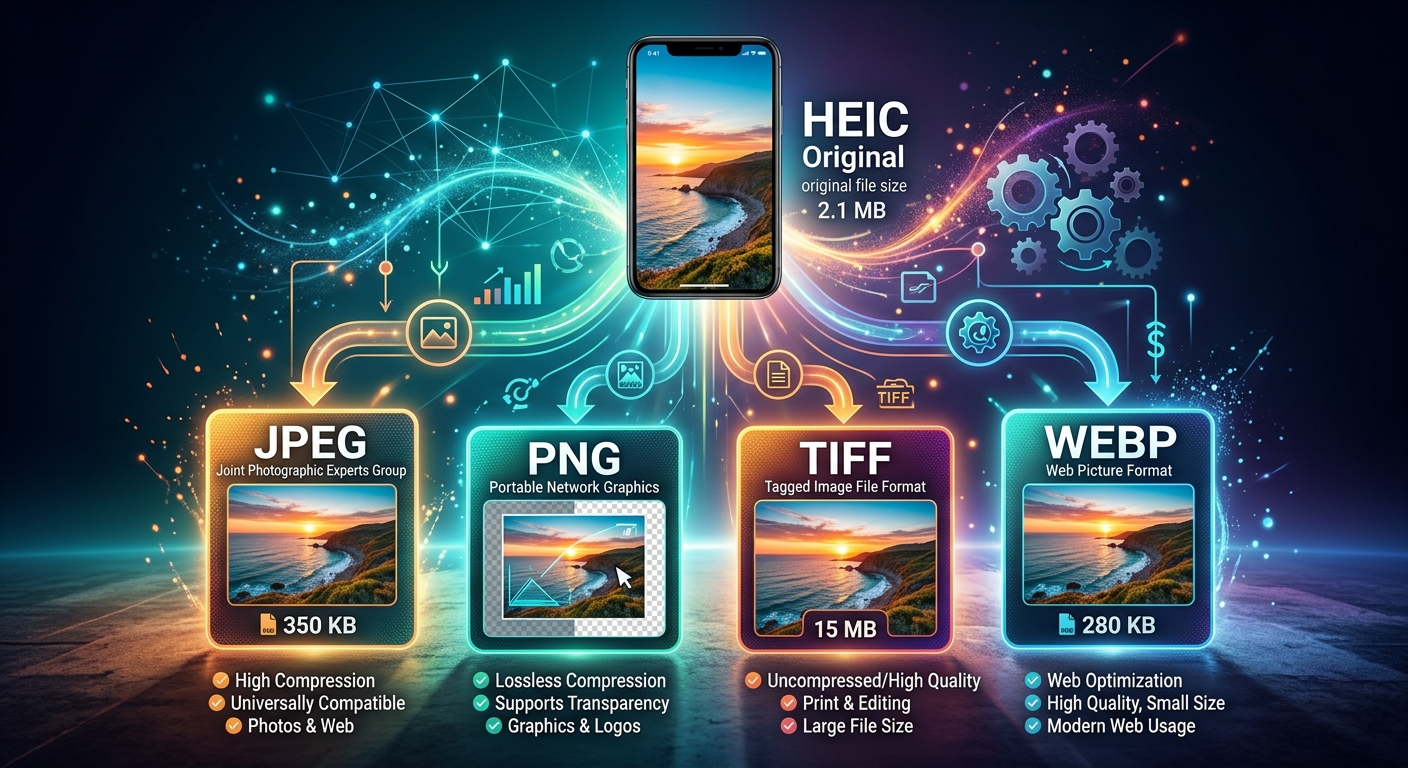
Your iPhone captures stunning photos. Then you try to share one with a Windows user, upload it to a web form, or drop it into a design project, and suddenly that beautiful image becomes a headache. The file is HEIC, and not everything can read it. The fix is straightforward: convert it. The part that trips people up is deciding which format to convert to.
JPG, PNG, WebP, PDF. Four options. Each one built for a different job. Picking the wrong one means you lose quality you needed, bloat a file that should stay small, or send something a recipient still cannot open. This guide cuts through the noise and gives you a clear decision rule for each format.
Format at a Glance
- JPG is the universal safe choice for sharing and email, opening on every device and app without friction.
- PNG preserves every pixel with zero compression loss, making it the right pick for editing, design work, and transparent backgrounds.
- WebP and PDF serve narrower but important needs: WebP for web publishing speed, PDF for packaging multiple photos into one document.
Why Your iPhone Saves Photos as HEIC in the First Place
Apple adopted HEIC (High Efficiency Image Container) starting with iOS 11 to give iPhones sharper photos at smaller file sizes. A HEIC file typically takes up half the space of a comparable JPG without any visible drop in quality. That is a genuinely impressive trade.
The catch is compatibility. HEIC is not a universal standard. Windows needs an additional codec to read it. Most web platforms reject it at upload. Android devices cannot always display it. The moment your photo needs to leave the Apple ecosystem, you run into walls.
That is where format conversion becomes part of the everyday photo workflow, not a one-off fix.
JPG: The Format That Opens Everywhere
JPG is the closest thing photography has to a universal language. It has been around since the early 1990s, and every device, app, browser, and email client on the planet can read it. When in doubt, JPG is the answer.
Convert to JPG when any of the following apply to your situation:
- You are emailing photos to someone who uses Windows or Android.
- You are uploading to a social media platform, job application portal, or any standard web form.
- You are printing through a third-party photo service or lab.
- You are sharing with someone non-technical and you need zero friction on their end.
- You need smaller file sizes for fast uploads or limited cloud storage.
The trade-off is that JPG uses lossy compression. Every time a JPG is saved, it discards some data to shrink the file. For photos you are sharing as-is, that is completely fine. For photos you plan to edit repeatedly, that data loss adds up over multiple save cycles.
JPG also does not support transparent backgrounds. If you need to place an image onto a coloured background in a design tool, JPG will give you a white rectangle around the subject instead of clean edges.
PNG: When You Need Every Pixel to Stay Perfect
PNG uses lossless compression. Nothing gets discarded. The file is larger than JPG, but the image is pixel-for-pixel identical to the original. That distinction matters in specific situations.
PNG is the right call when:
- You are editing the photo in Photoshop, GIMP, Canva, or any design application and want to preserve full quality across multiple saves.
- You need a transparent background, such as a product photo on white that will sit on a coloured web page.
- You are creating screenshots, graphics, or images with sharp text where JPG compression artifacts would look messy.
- You are archiving an original for long-term use and cannot afford any quality degradation.
File size is the main downside. A PNG of a detailed landscape photo can be several times larger than its JPG equivalent. For web use, that weight slows page load times. For email, it can push attachments over size limits. Use PNG where quality and editability matter more than file size.
WebP: The Smart Choice for Web Publishing
WebP was developed to give web publishers the best of both worlds: smaller files than JPG with better visual quality, plus support for transparency like PNG. Lossy WebP images are typically 25 to 34 percent smaller than comparable JPGs at equivalent visual quality, a figure backed by published compression benchmarks.
That difference is meaningful if you run a blog, an e-commerce site, or any site where page speed affects user experience and search rankings. Every kilobyte trimmed from an image is a small win for load times.
WebP has broad browser support now. Chrome, Firefox, Edge, Safari (version 14 and later), and all modern mobile browsers handle it natively. That covers the vast majority of web traffic today.
Where WebP falls short is outside the browser. Many desktop photo apps, email clients, and image viewers still cannot open WebP files reliably. If you are converting for anything other than web publishing, stick to JPG or PNG instead.
PDF: Packaging Multiple Photos into One Document
PDF is not a photo format in the traditional sense. It is a document format. But converting photos to PDF solves a very specific and frustrating problem: sending multiple images as one organised, ordered file.
Here is the workflow where PDF earns its place:
- You photographed a multi-page paper form, a contract, or a handwritten note across several separate shots.
- You need to send those shots as one coherent file, not a scattered folder of loose images.
- The recipient needs to print, sign, annotate, or archive the document in a standard readable format.
- You want the pages in a specific order with no chance of them getting shuffled or renamed in transit.
PDF is also a strong choice for long-term archiving. The format is stable, widely supported, and preserves document structure in a way that a loose collection of image files never does.
The limitation is that PDF is not meant for image editing. If you hand a designer a PDF of product photos, they will ask for the originals. Use PDF for document-style delivery and archiving, not for creative handoffs.
HEIC Variants and Why They Can Complicate Conversion
HEIC is not one single format. Your iPhone actually produces several variants depending on what you are capturing.
Standard photos save as .heic files. Live Photos, which capture a brief moment of motion before and after the shutter press, save as .heics files. Burst sequences, where you hold the shutter to capture rapid action, create their own set of files with a different internal structure. Each variant is technically distinct under the hood.
This matters because not every conversion tool handles all of them correctly. Some tools choke on .heics files or silently extract only the still frame from a Live Photo without warning you. If you are dealing with a mix of photo types from your camera roll, a converter that handles all HEIC formats saves you from having to pre-sort your library and from discovering mid-batch that half your Live Photos came out blank or incomplete.
Knowing which variant you have ahead of time is usually unnecessary if your tool handles them automatically. What matters is that the converter does not require you to do the sorting work yourself.
Matching Format to Destination: the Decision That Simplifies Everything
The format question becomes simple once you tie each option to a concrete outcome.
Someone needs to open the file right now on any device: use JPG. You or a designer will be editing the image: use PNG. The photo is going onto a website and load speed matters: use WebP. You are packaging photos as a document for delivery or archiving: use PDF.
The format is not about the photo itself. It is about what happens to the photo next. A shot of a product on a white background might need to be PNG for the designer, JPG for the social media post, and WebP for the product listing page on your site. Same photo, three different destinations, three different formats.
That framing simplifies every conversion decision you will face. Ask where the file is going and who is receiving it. The right format answers itself from there. Once that habit clicks, the whole HEIC conversion process stops feeling like a technical obstacle and starts feeling like a routine step, no different from resizing or renaming.